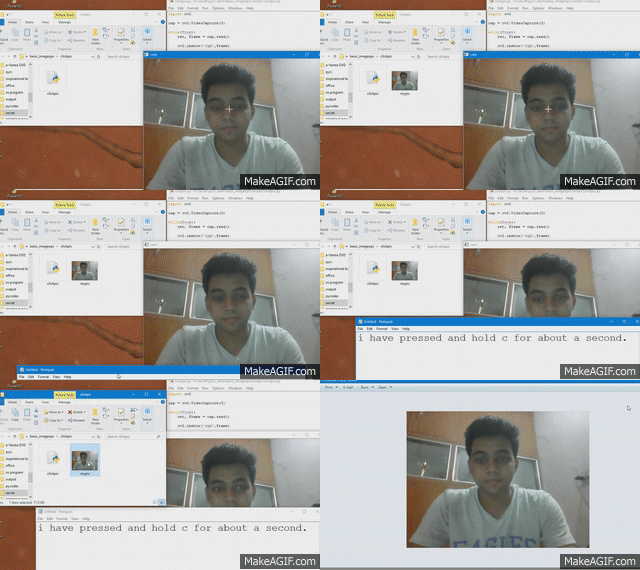
In this tutorial we will see how to record a video from a camera. We can use laptop camera to do this. Here is the code:
Lets understand whats happening in the code above:
NOTE: Read Line 3 and Line 4 carefully
Line 1: Import necessary libraries
Line 2 : Initialize VideoCapture object cap. We pass 0 as argument to initialize laptop camera. Try numbers greater than or equal to 1 to initialize external camera
Line 3 : This is the most important step as in this step we are providing the info about the codec of video we are going to make. It can be 'XVID', 'MJPG', 'DIVX' and so on. We have defined it as 'XVID'. The function we use for this is cv2.VideoWriter_fourcc(*'<type of file>') where you can replace <type of file> with supported Codecs of Videos in OpenCV.
Line 4 : Now we need to specify what will the output i.e. captured video will look like. For this will create a VideoWriter object. This object takes as input the filename(eg. movie.avi) , the FOURCC code, fps(frames per second) i.e the speed of video(eg. 20), and the resolution of the video(eg. (320,160)).
Line 5 : While loop starts
Line 6 : Capturing a frame from camera and saving in frame.
Line 7 : As we discussed in one of the previous tutorials, ret is a boolean variable which contains True if frame is captured else False. This makes sense as we will only save a frame if it is available.
Line 8 : From this line onwards we start saving the video. As the name suggest, it write onto the file mentioned in "output" object.
Line 9 : Display the frame so that you can see whats been recorded. If you omit this line, you can still record video although you wont be able to see what is being recorded.
Line 10-11 : As discussed in previous tutorials, waitKey(40) will hold the whatever is on the screen for 40 millisecond and check whether "ESC"(27 is ASCII for ESC key) key is pressed. If the key is pressed we come out of loop(due to break) and the recording stops too.
Line 12-13 : Release the camera and close all windows using these two lines.
Output:

import cv2                                                             #Line1

cap=cv2.VideoCapture(0)                                                #Line2

#Specifying codec for video
fourcc = cv2.VideoWriter_fourcc(*'XVID')                               #Line3

output = cv2.VideoWriter('PyVideo.avi', fourcc, 25.0, (640,480))       #Line4

#displaying and saving the video
while(1):                                                              #Line5
    ret,frame=cap.read()                                               #Line6
    if ret==True:                                                      #Line7
        output.write(frame)                                            #Line8

        cv2.imshow('frame',frame)                                      #Line9

        if cv2.waitKey(40) == 27:                                      #Line10
            break                                                      #Line11

cap.release()                                                          #Line12
cv2.destroyAllWindows()                                                #Line13
Lets understand whats happening in the code above:
NOTE: Read Line 3 and Line 4 carefully
Line 1: Import necessary libraries
Line 2 : Initialize VideoCapture object cap. We pass 0 as argument to initialize laptop camera. Try numbers greater than or equal to 1 to initialize external camera
Line 3 : This is the most important step as in this step we are providing the info about the codec of video we are going to make. It can be 'XVID', 'MJPG', 'DIVX' and so on. We have defined it as 'XVID'. The function we use for this is cv2.VideoWriter_fourcc(*'<type of file>') where you can replace <type of file> with supported Codecs of Videos in OpenCV.
Line 4 : Now we need to specify what will the output i.e. captured video will look like. For this will create a VideoWriter object. This object takes as input the filename(eg. movie.avi) , the FOURCC code, fps(frames per second) i.e the speed of video(eg. 20), and the resolution of the video(eg. (320,160)).
Line 5 : While loop starts
Line 6 : Capturing a frame from camera and saving in frame.
Line 7 : As we discussed in one of the previous tutorials, ret is a boolean variable which contains True if frame is captured else False. This makes sense as we will only save a frame if it is available.
Line 8 : From this line onwards we start saving the video. As the name suggest, it write onto the file mentioned in "output" object.
Line 9 : Display the frame so that you can see whats been recorded. If you omit this line, you can still record video although you wont be able to see what is being recorded.
Line 10-11 : As discussed in previous tutorials, waitKey(40) will hold the whatever is on the screen for 40 millisecond and check whether "ESC"(27 is ASCII for ESC key) key is pressed. If the key is pressed we come out of loop(due to break) and the recording stops too.
Line 12-13 : Release the camera and close all windows using these two lines.
Output:
As you can see, I am playing a file which was created after I run the program.
So, that's it for this tutorial. Hope to see you again in my next tutorial which is going to be really interesting so do visit and like my facebook page to stay connected.
Any queries, please ask in comments section below.
ThankYou